
Accessing a journal entry
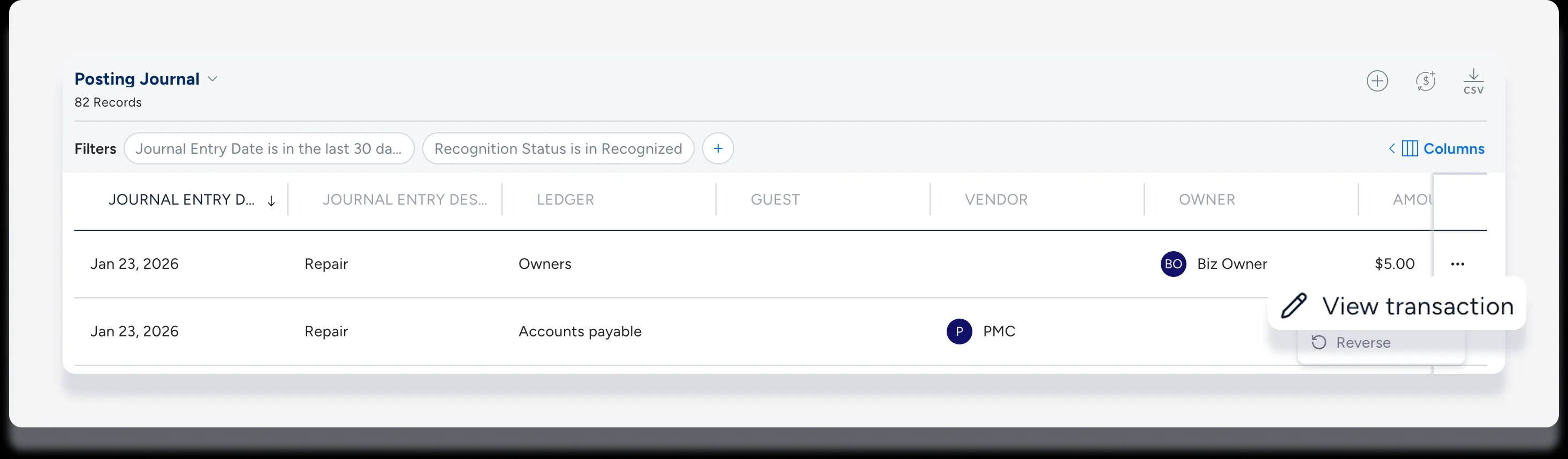
- Posting Journal
- Sign in to your Guesty account.
- In the side navigation menu, click
 Accounting to open the dropdown menu.
 - Under General ledger, select Posting journal.
- To the right of the journal entry, click
 and select View transaction.
- Reservation
- Sign in to your Guesty account.
- In the side navigation menu, click
 Reservations.
 - Select the relevant reservation.
- In the gray banner at the top of the page, click Balance due or Payout.
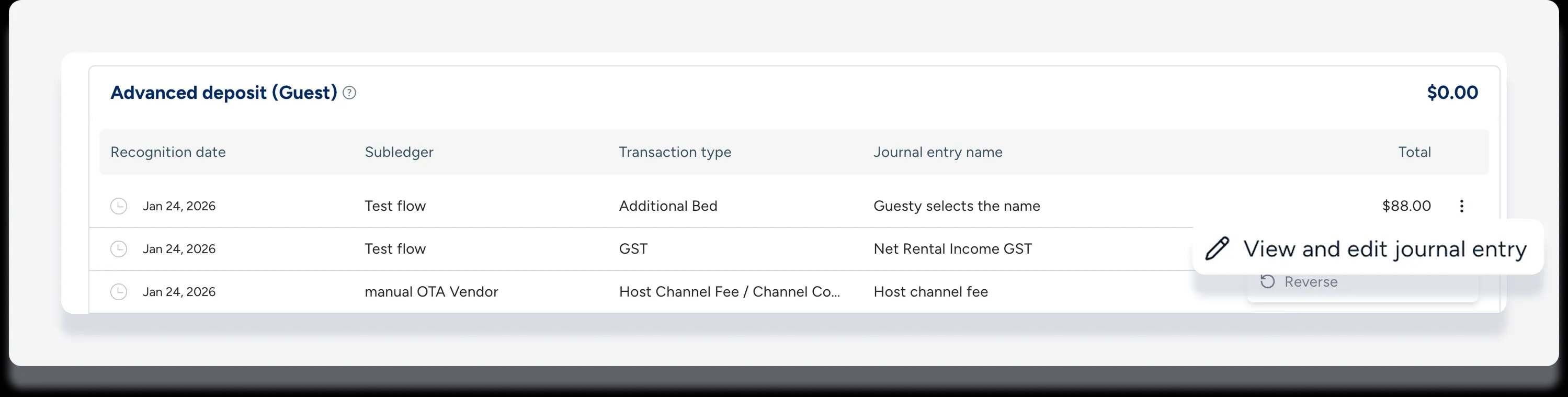
- Scroll down to the "Accounting folio".
- To the right of the journal entry, click
 and select View and edit journal entry.
Edit a journal entry
- At the top right of the right side panel, click Edit.
- Update the relevant fields:
- Amount: When you change the credit amount, the debit updates automatically to keep the entry balanced.
- Date: Update the recognition date for entries in open periods.
- Accounts and Ledgers: Select different ledgers and accounts for manual entries.
- Entry Details: Edit the entry name, description, or category.
- Click Update journal entry.
- Optional: In the confirmation screen, add a note in the Reason for edit field to explain the change for the audit trail.
- Click Update changes.
Understand Editing Restrictions
- Certain fields are locked or "grayed out" to ensure financial integrity and compliance. Review the limitations below:
- Locked periods: You can't change the amount or date of entries in a locked accounting period because this impacts past owner statements and opening balances.
- Disbursed or paid entries: If an entry is already paid or disbursed, you can only edit the Name and Description.
- Reservation-based entries: For entries created automatically through a reservation, the Ledger and Account fields are locked to match the original reservation data.
- Cash or payment journal entries: These journal entries can't be edited. You must edit the amount and date of cash transactions through the original payment flow.
- Reconciled or grouped entries: You must unreconcile or ungroup an entry before you can change the amount or date.